Reviewing and changing your billing information is a snap in the Venture Vault user portal.
Here’s a quick guide to help you through it.
From your personal account:
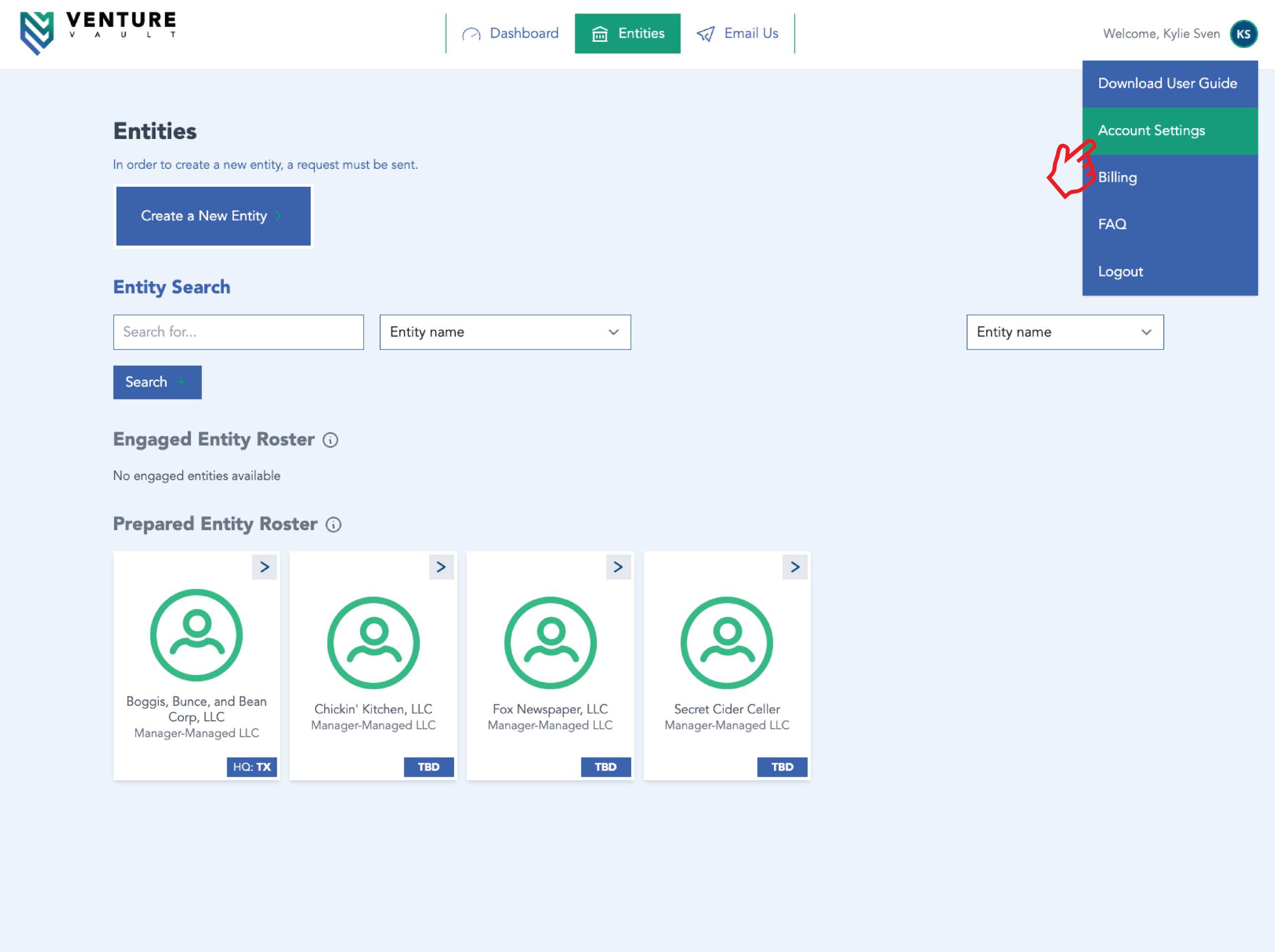
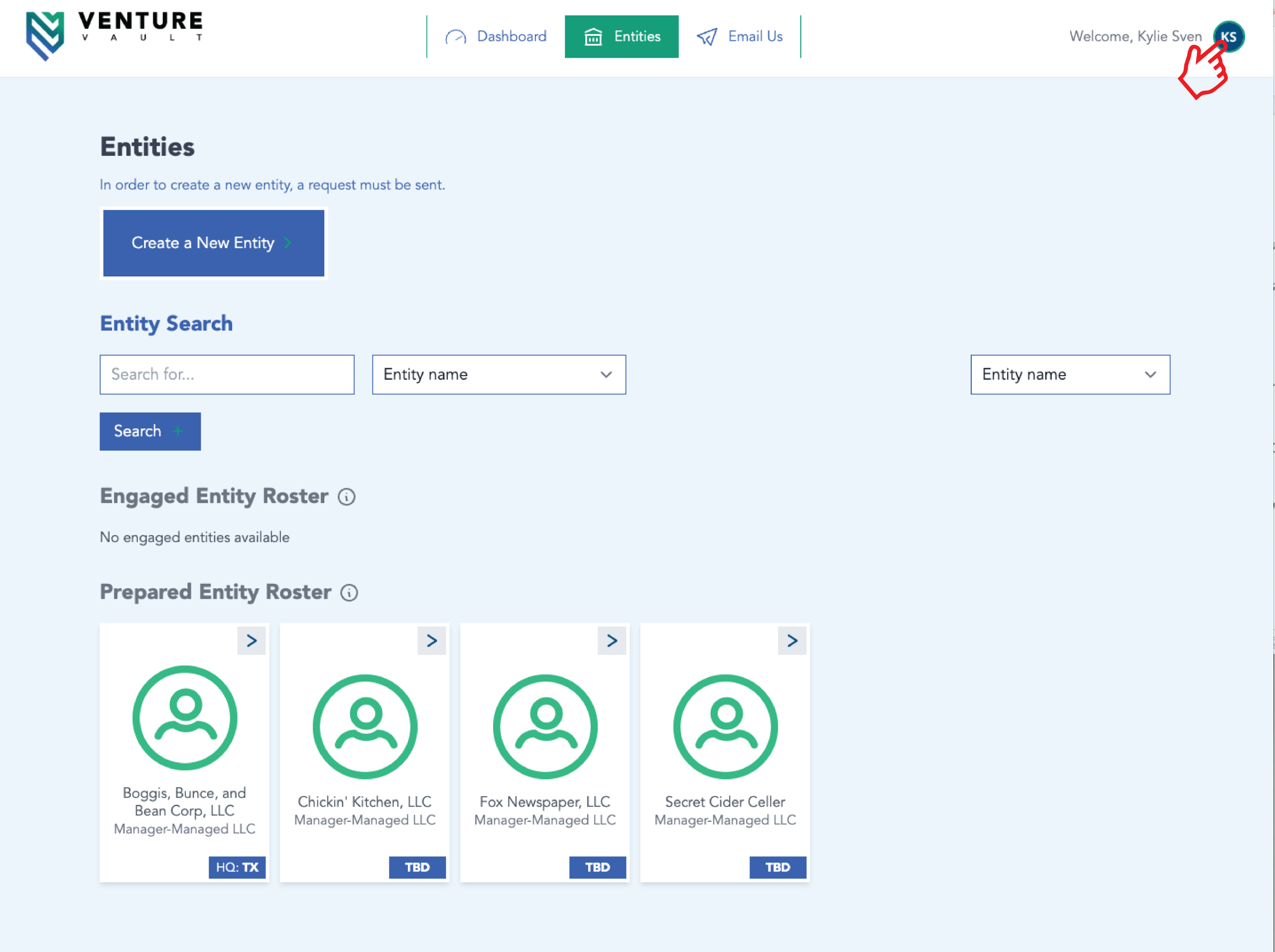
- Click your initials in the top right corner of the screen.
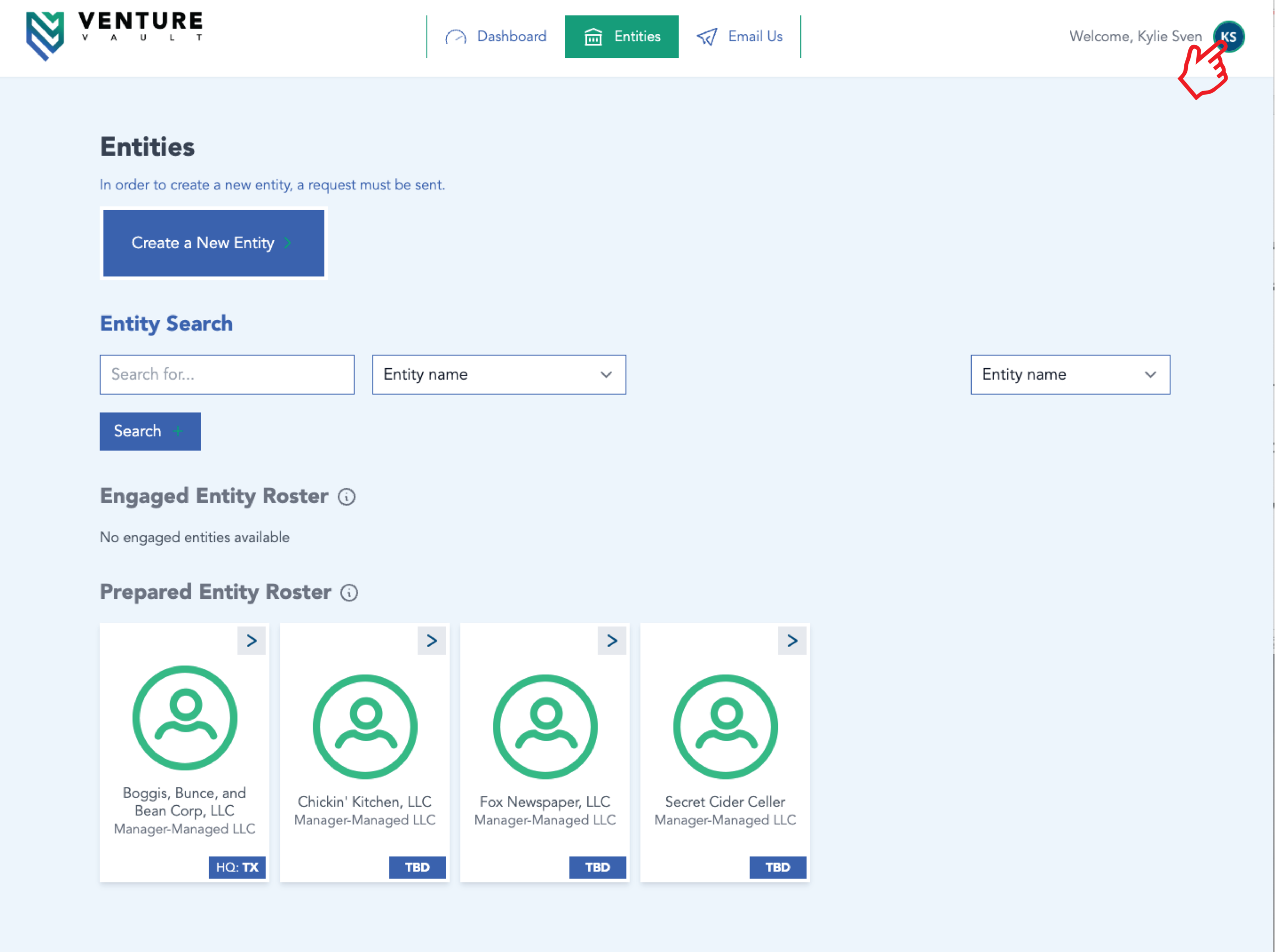
- Hover to “Billing” and click.
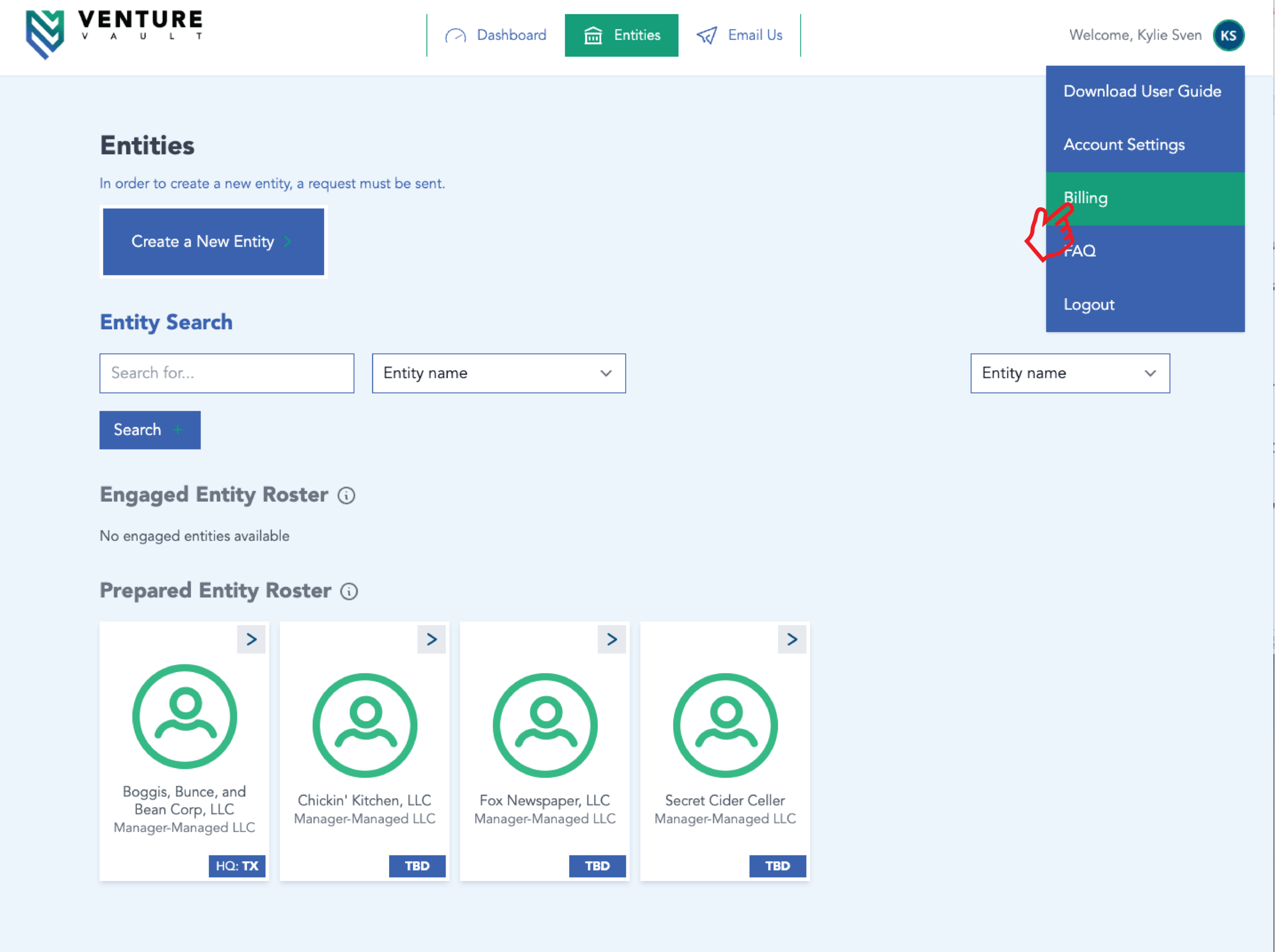
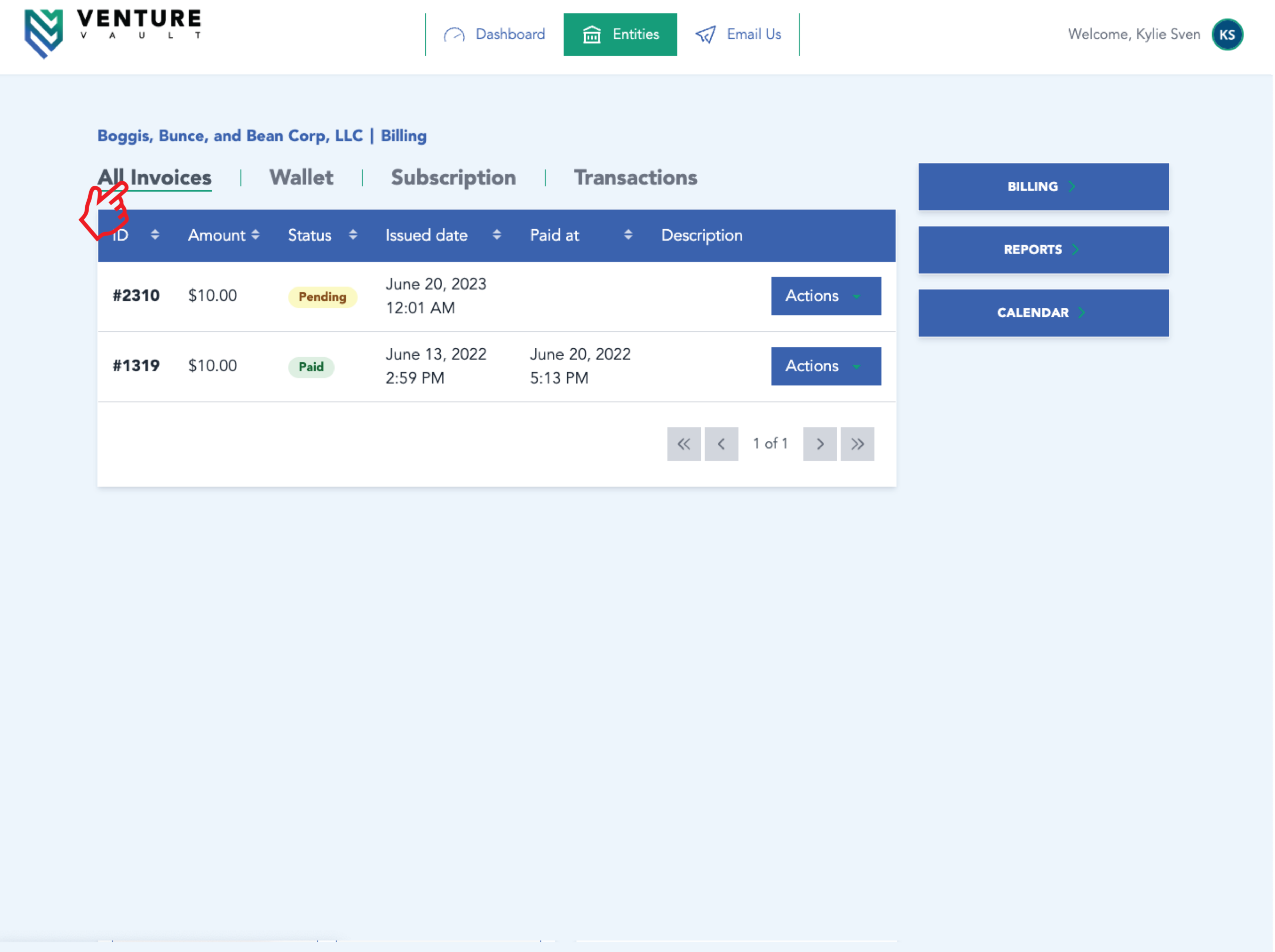
- Click “All Invoices” to view what has been paid or any balances remaining in your account.
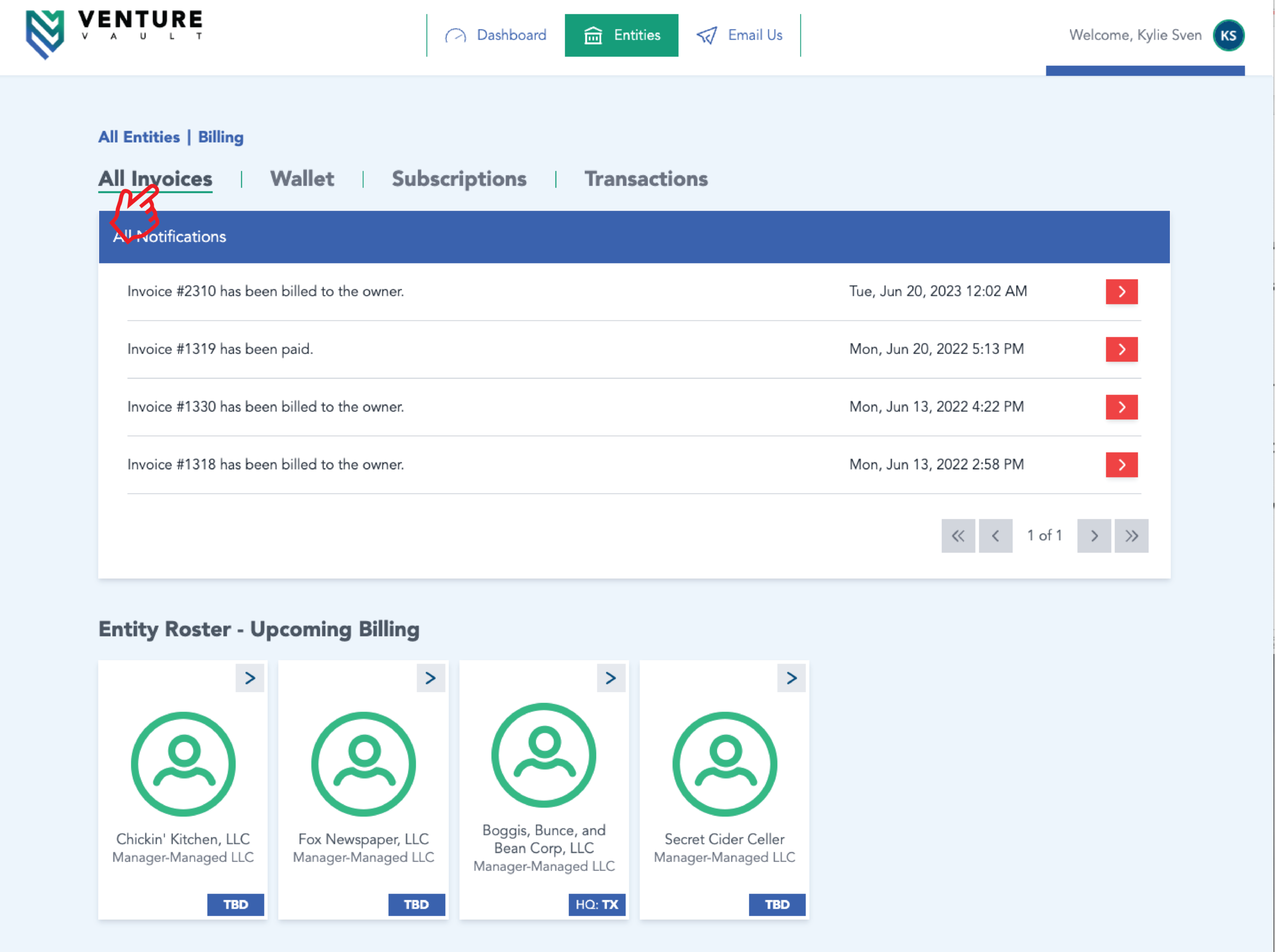
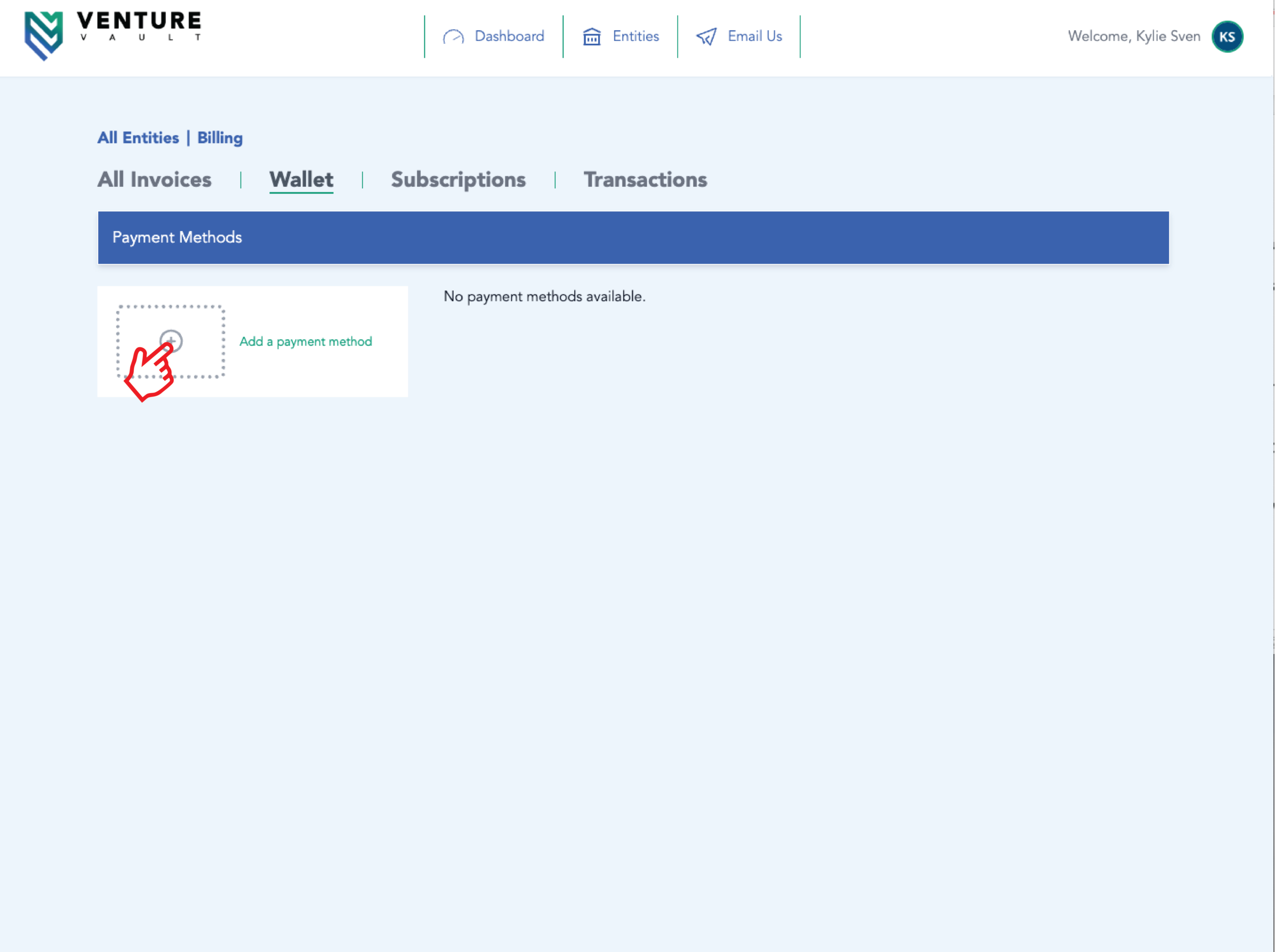
- Click “Wallet” to change or add your payment method.
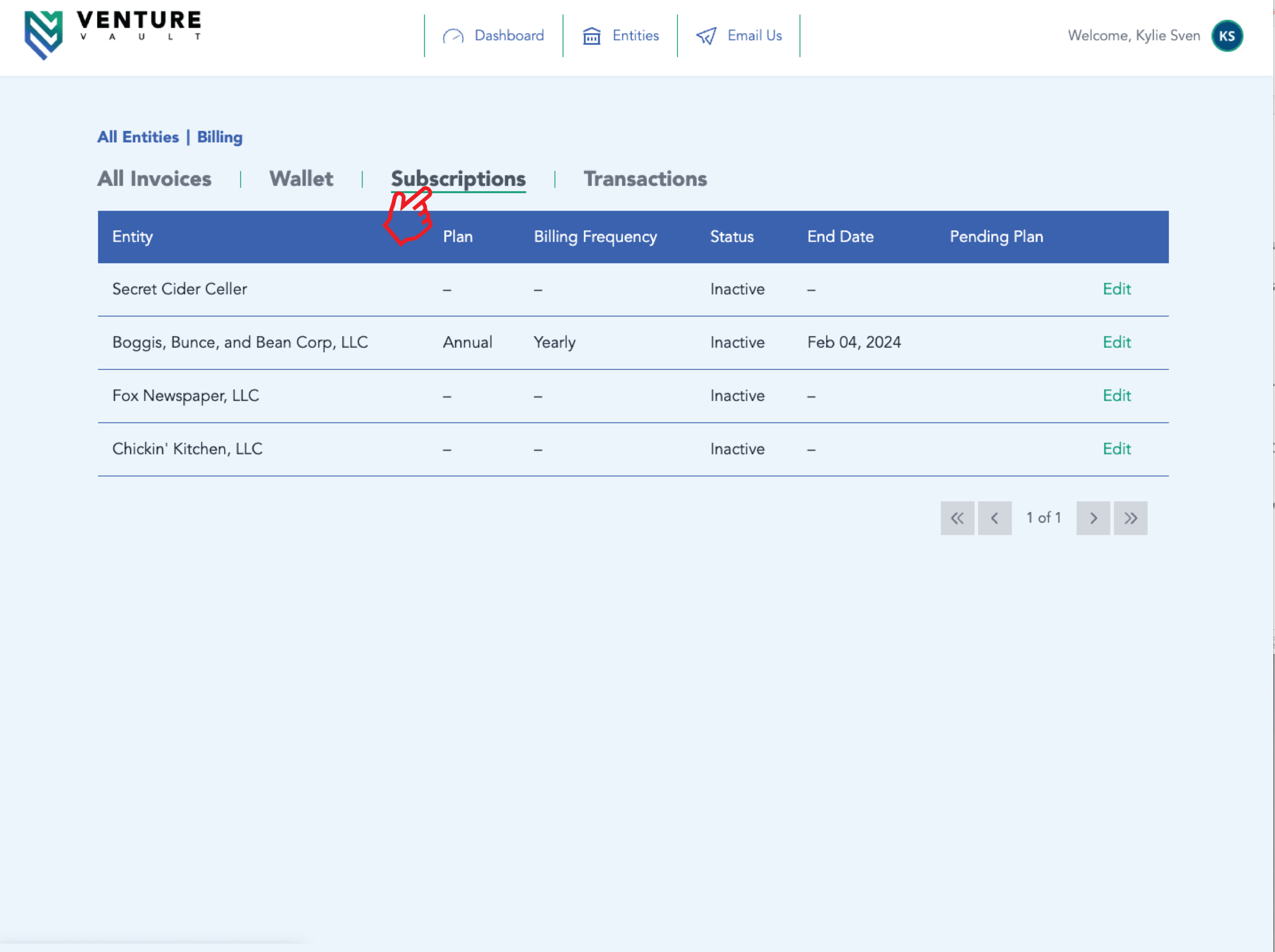
- Click “Subscriptions” to view which products the entities in your account are active.
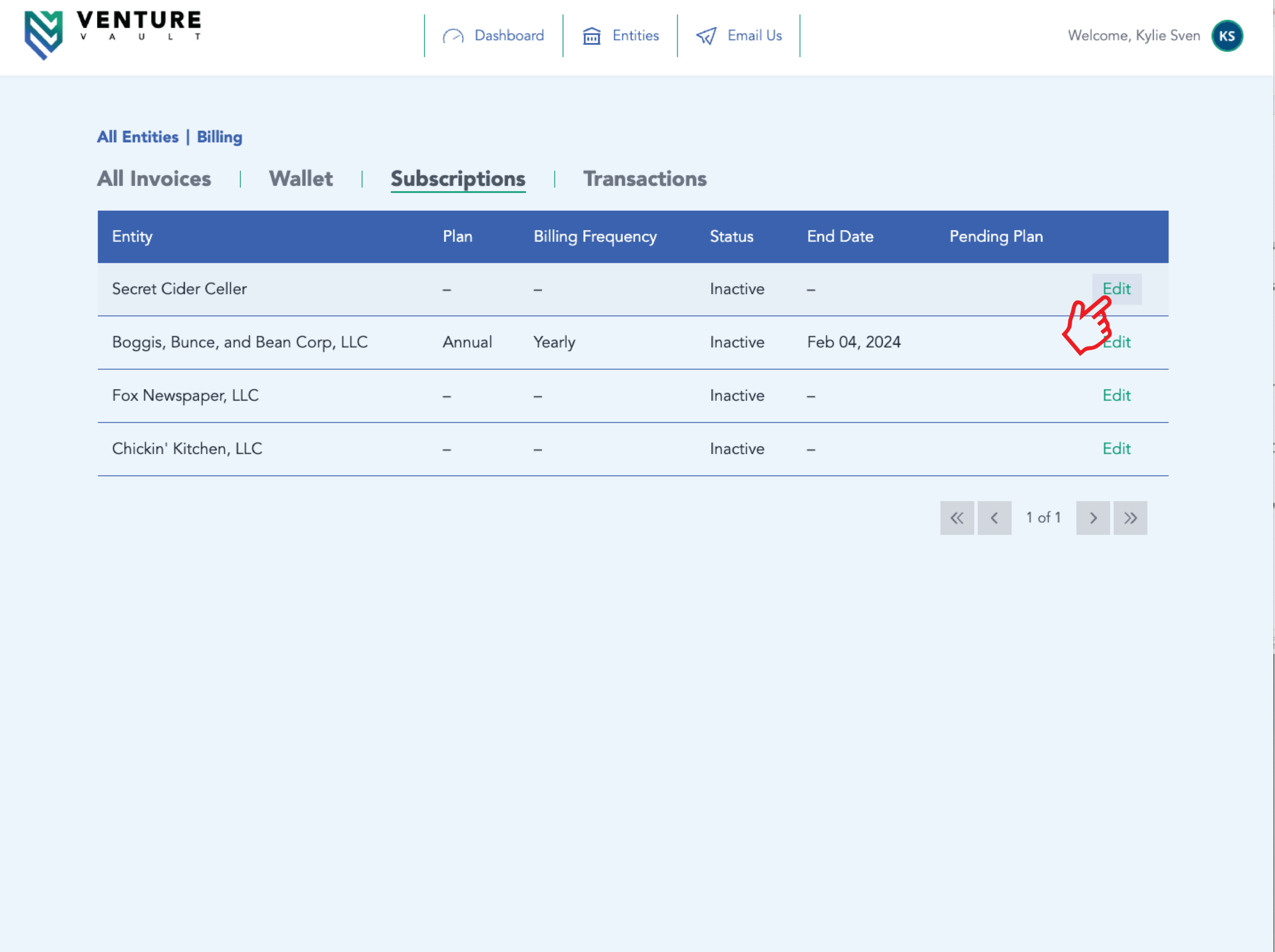
- Navigate to “Edit” beside the entity you’d like to make billing changes to.
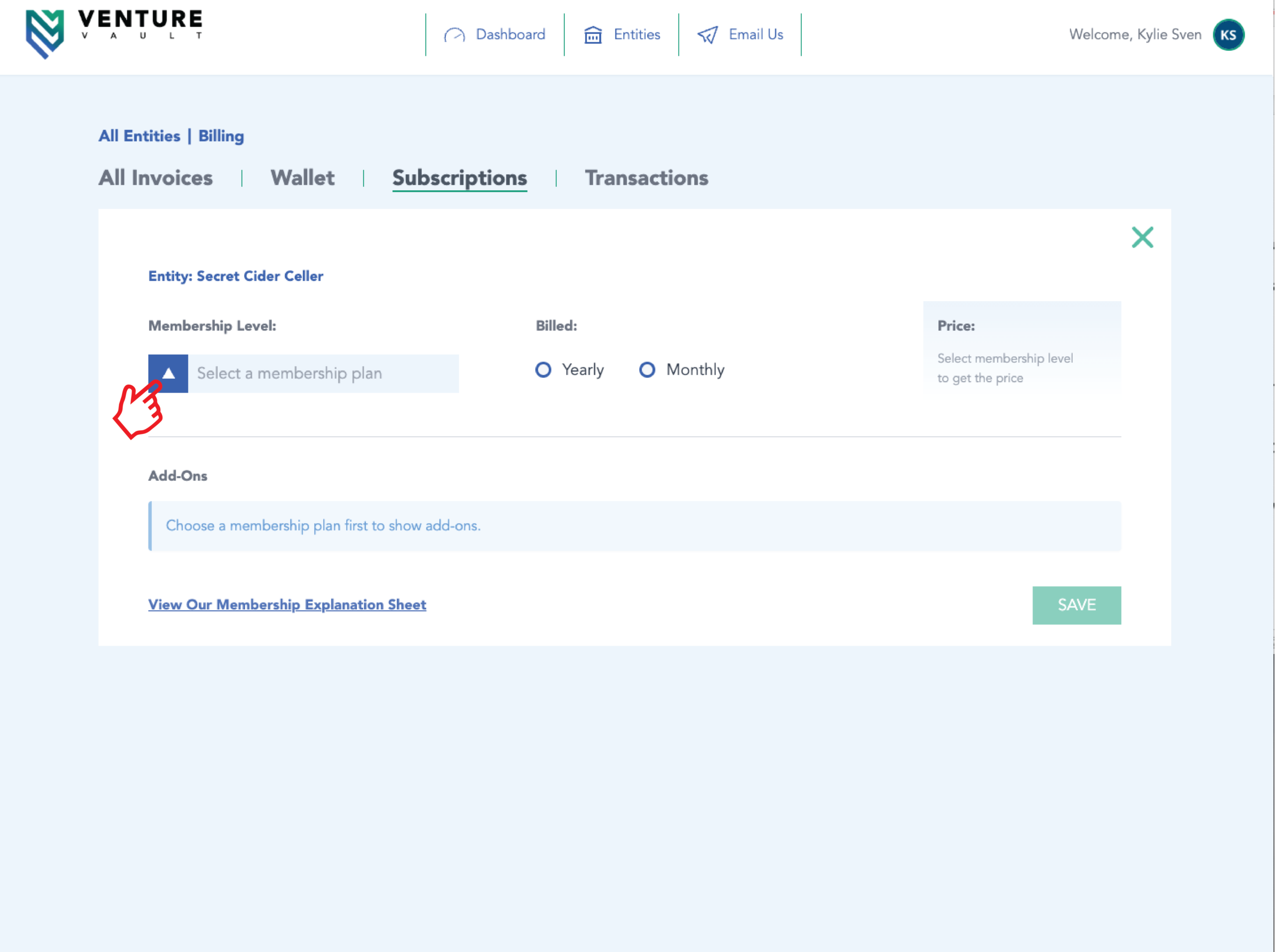
- Click the blue and white triangle at the left side of your screen to “Select a Membership Plan“.
- Click “Transactions” to review all unpaid and paid balances.
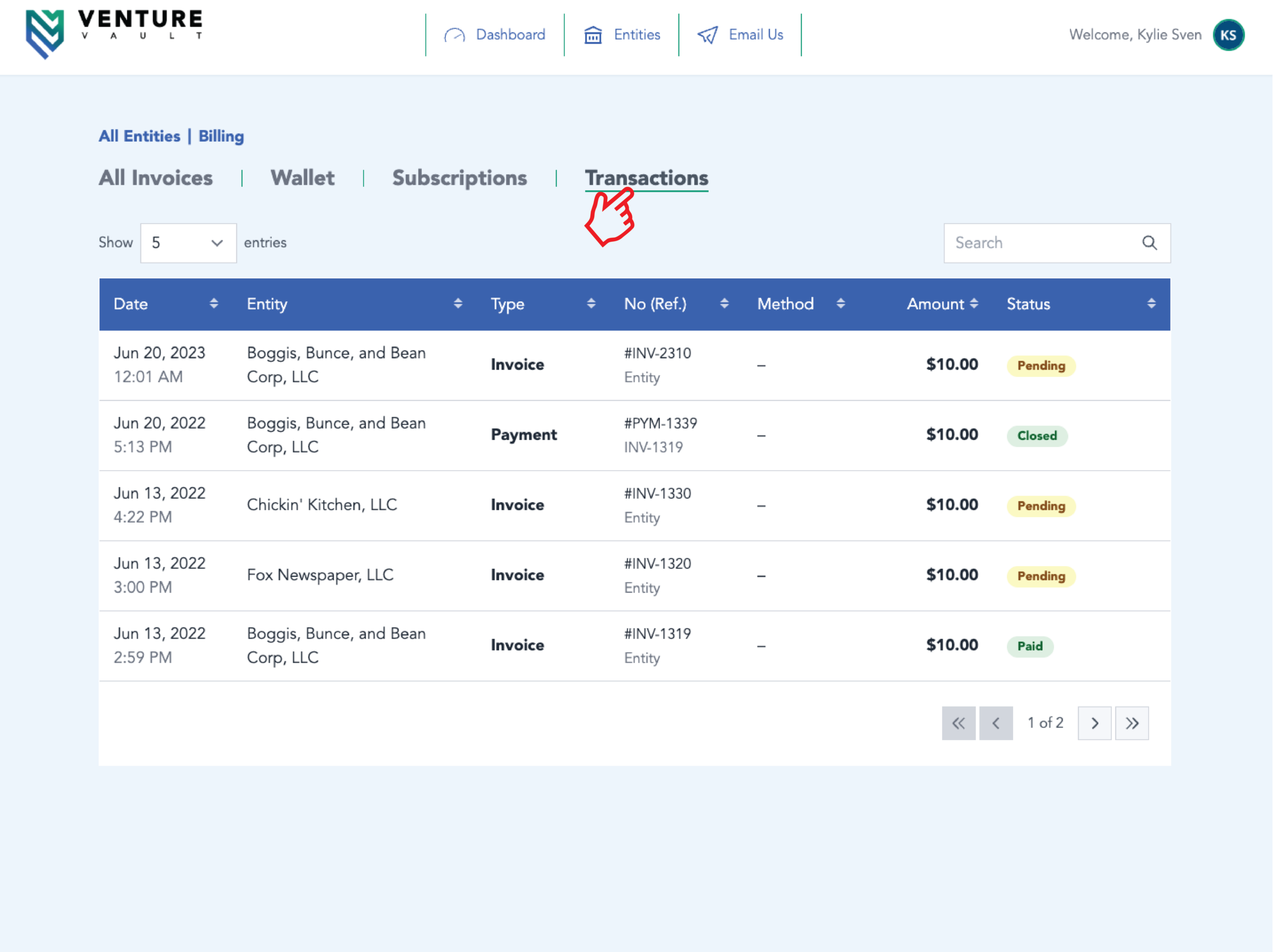
From the “Dashboard”:
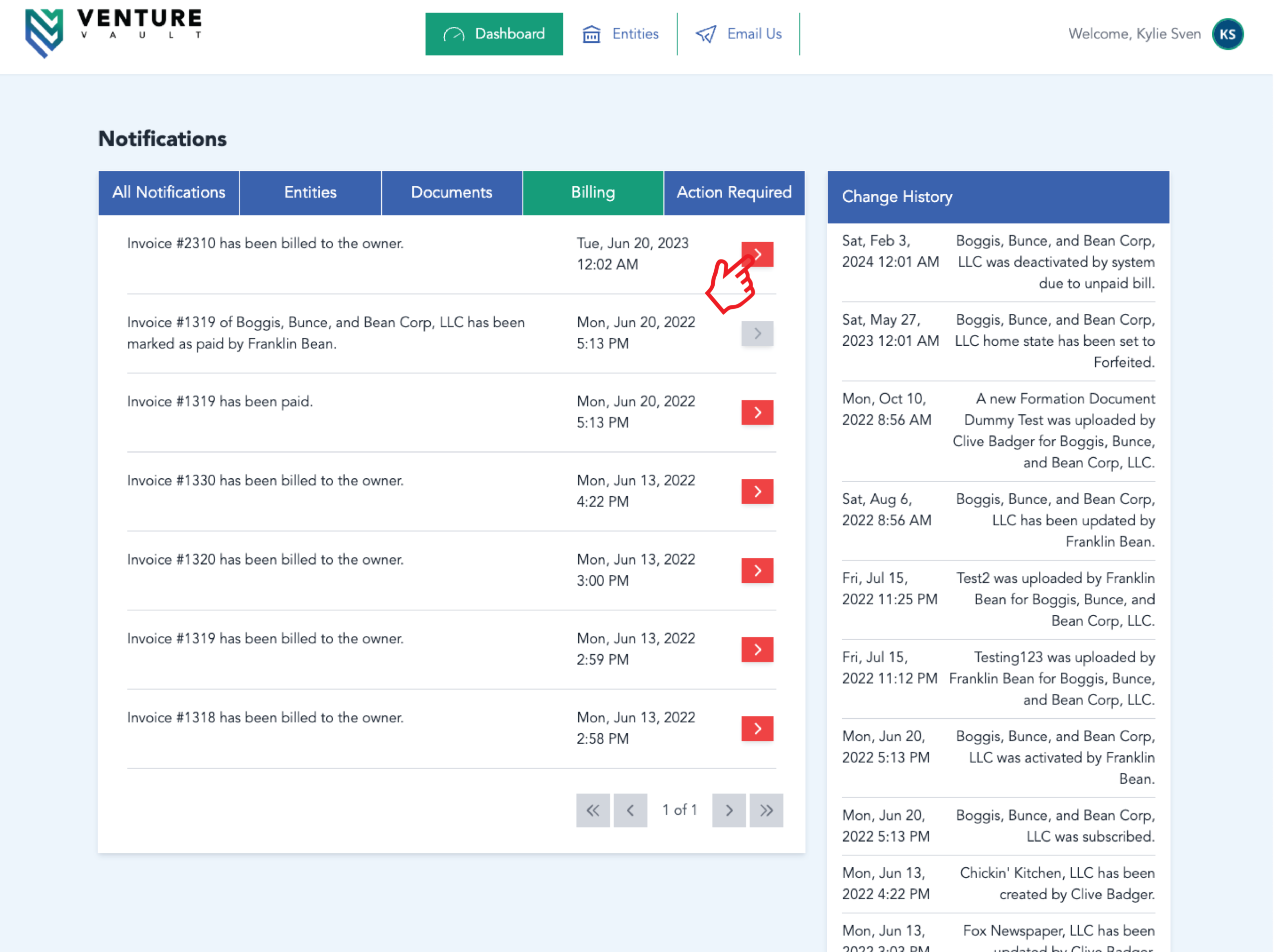
- Click the blue button that says, “Billing“
- Navigate to the red arrow beside any open invoice.
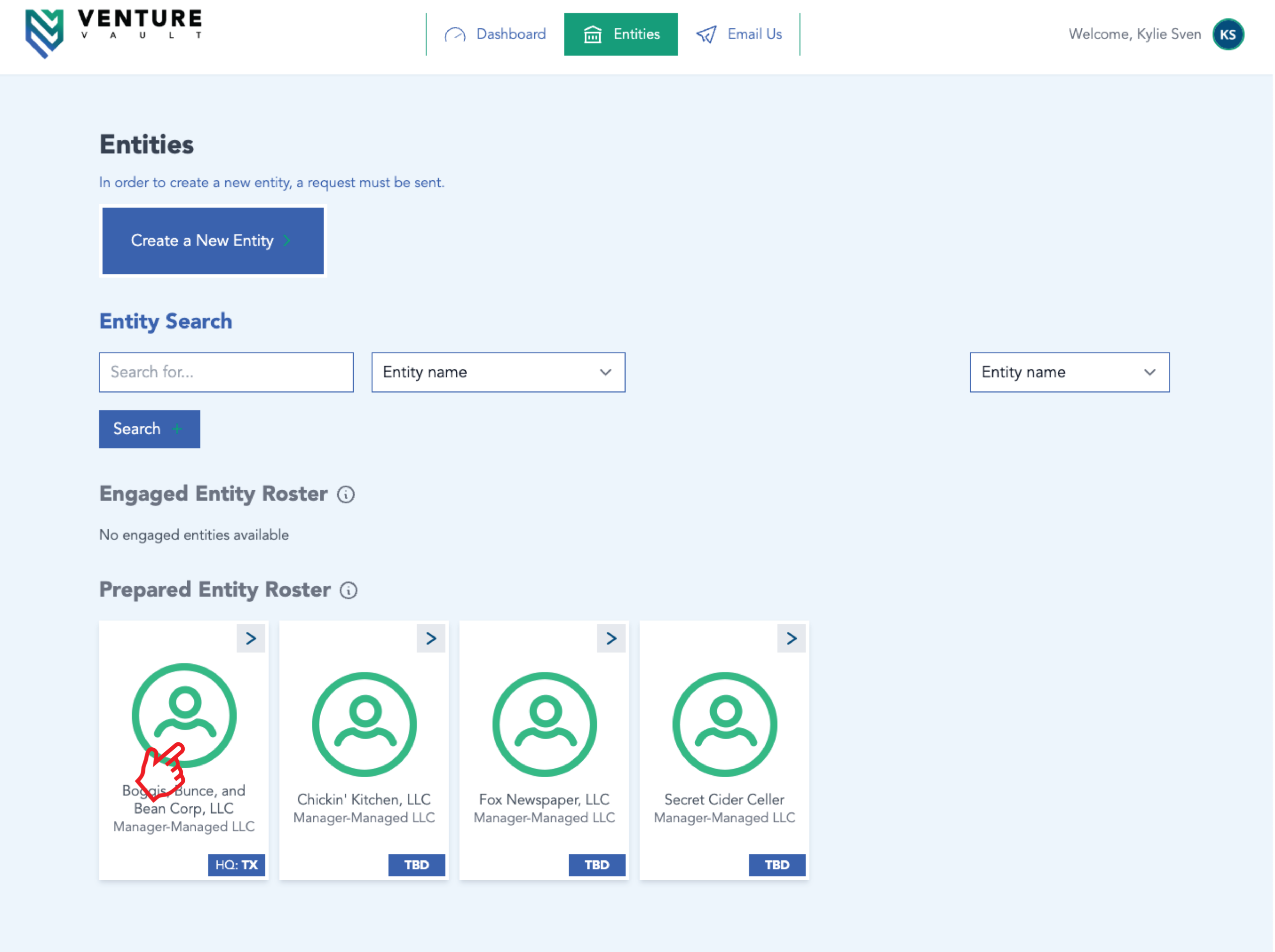
From the “Entities” page:
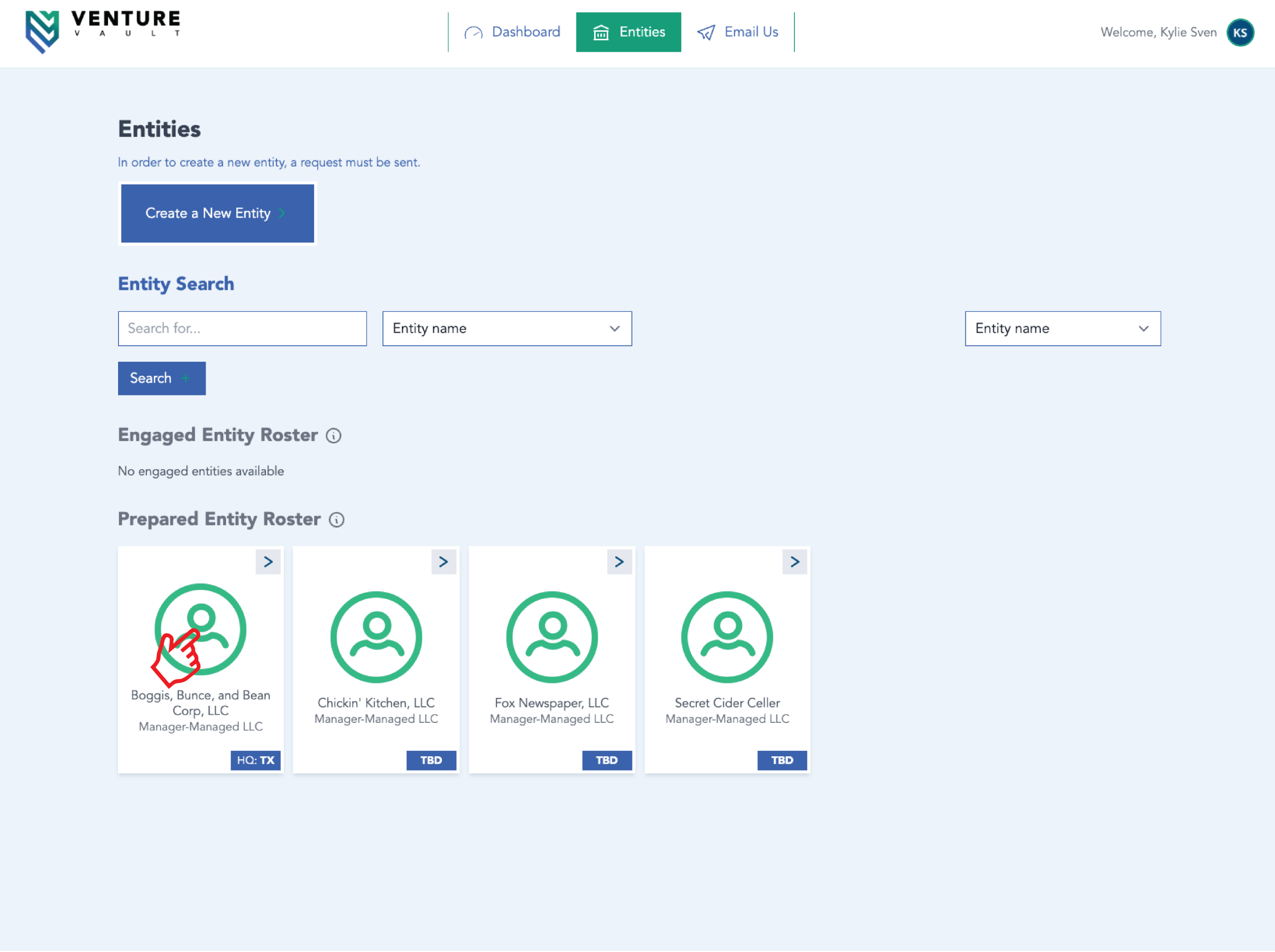
- Select the entity you’d like to manage by clicking the appropriate entity card at the bottom of your screen.
- Click the blue “Billing” button.
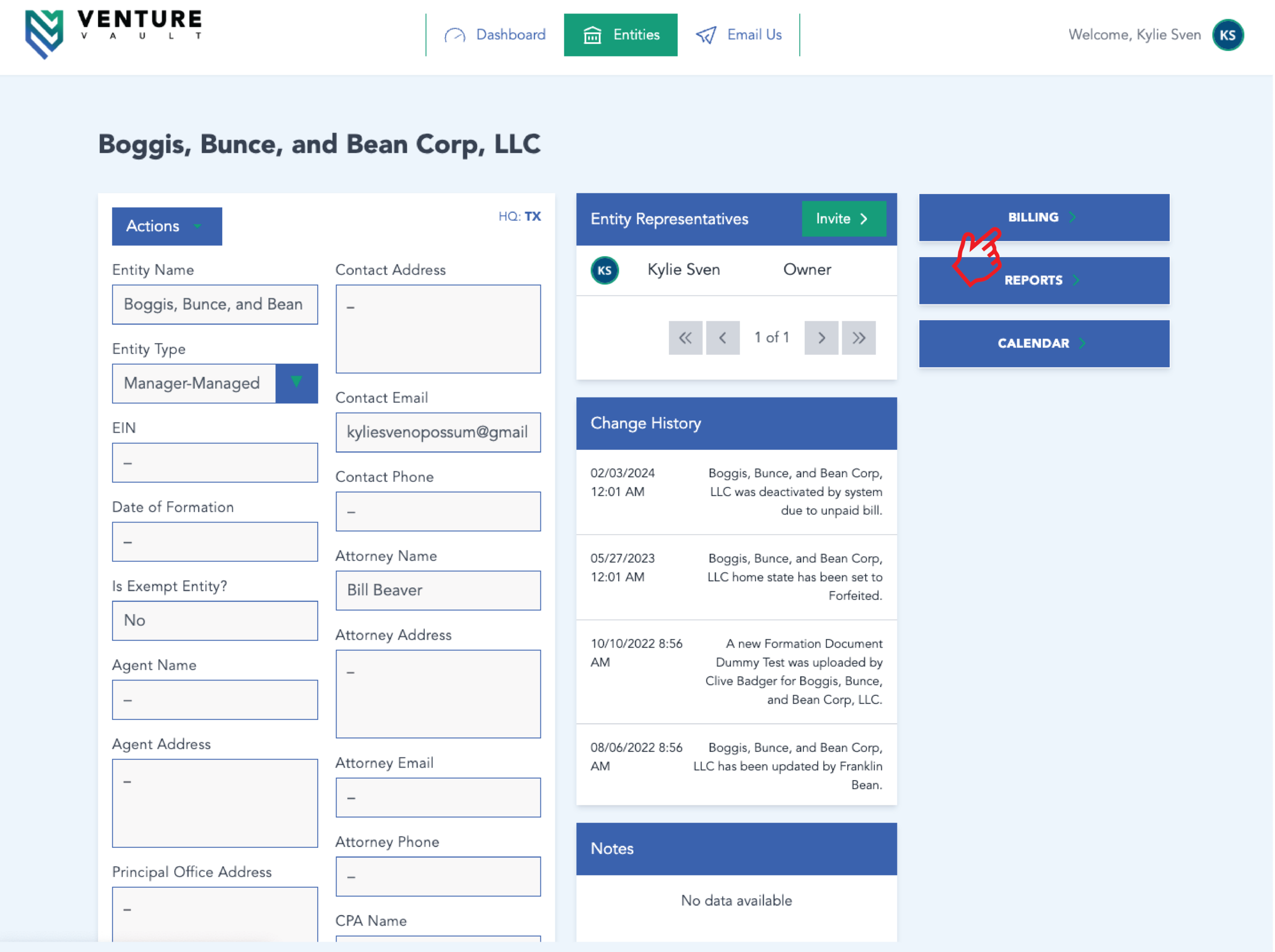
- Click “All Invoices” to review any transactions and make payments.